Webinar Watch Room Attendee Sign In Setting
Our webinar software allows you to require attendees to sign in in order to access the webinar watch room. If this setting is enabled, registrants either need to use their unique webinar session link (given to them on the thank you page after registering and in our built-in follow up emails) or sign in to the watch room using the information they used to register.
If this setting is disabled:
By default, this setting is disabled. This means you can send the watch room link to anyone and they will be able to access the webinar watch room without having registered for the webinar.
Please note, this setting shouldn't affect most registrants/attendees because they would be getting their unique webinar session link after registering for the webinar.
This setting should only affect you if you're sending people to the watch room link (shown in the screenshot below) directly.
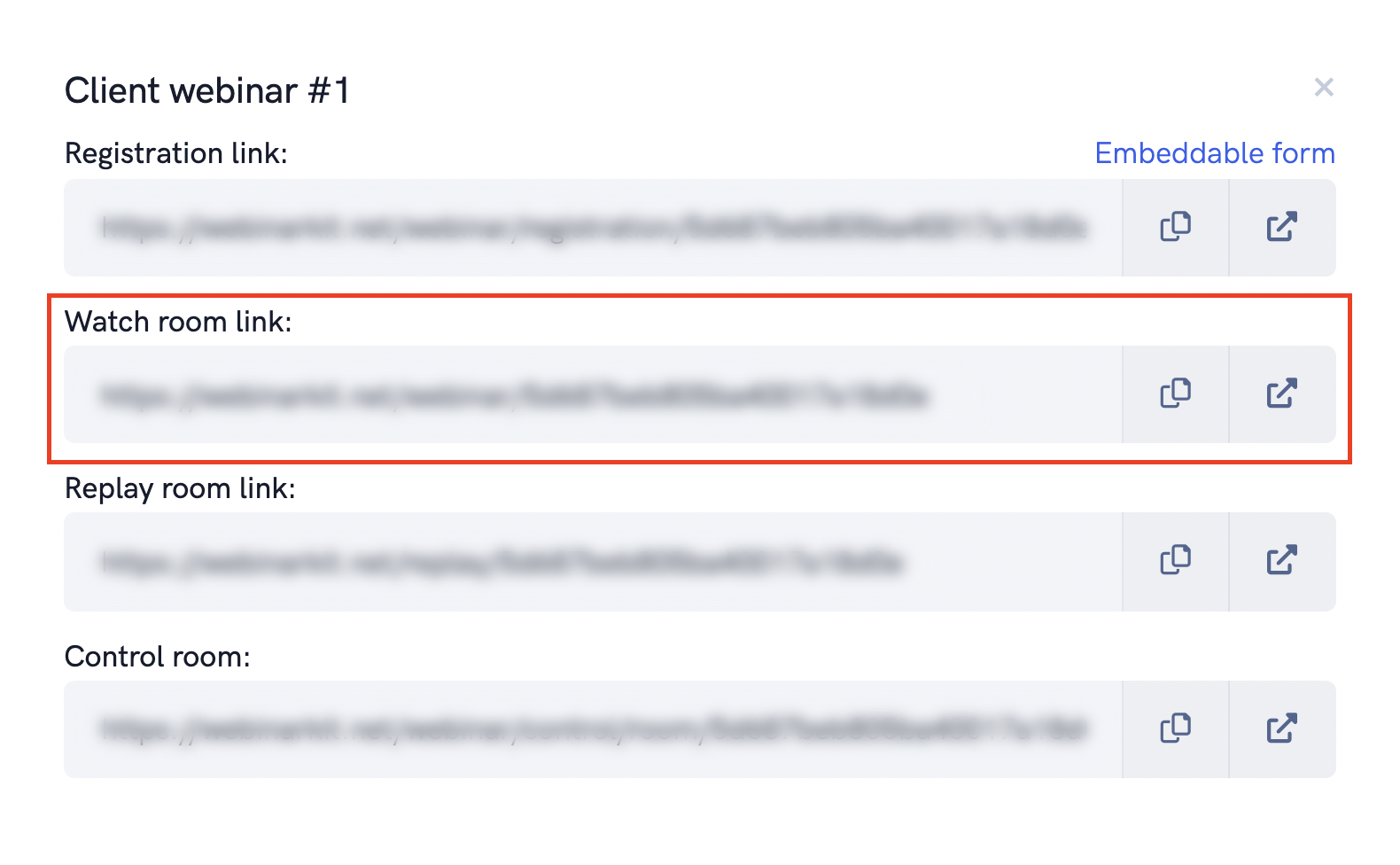
Please keep in mind, if you send the watch room link directly, our webinar software will not be able to determine who has entered the watch room. This means certain features like attendee analytics and certain like-live features (video starting at correct time), will be disabled.
If this setting is enabled:
If you enable this setting, anyone besides the webinar admin will need to be registered for the webinar in order to join the watch room. If the attendee clicks on their unique webinar session link, they will automatically be taken into the webinar watch room.
If they use the direct watch room link (shown in the picture above), they will be taken to an attendee sign in page. On this page, they will need to enter the info they used to register for the webinar in order to access the watch room.
If the visitor has not already registered for the webinar, they will be redirected to the webinar registration page where they can then register for the event.
Enabling this feature is useful for when you are using a 3rd party email service to follow up with registrants. You can send the direct watch room link in your custom follow up/reminder emails and your registrants will be able to sign into the room when it's time for the webinar.
This will enable all of our webinar software features to work (analytics, video starting at correct time, etc...) even when sending the direct watch room link.
Related Articles
How to build webinar funnels
This tutorial will give an in depth guide on how to build webinar funnels in just a few minutes. Our platform makes is super easy to build your (automated or live) webinar funnel in just a few minutes! But there are also a ton of powerful ...Using the webinar watch room builder
In this article, we'll show you how to fully customize the watch room where people actually watch your event presentation using our powerful builder. Whether you're running an automated or live webinar, you're going to want to make sure your watch ...Why is my automated webinar video starting from the very beginning when I refresh the watch room page?
In this article, we'll explain exactly how automated webinars work with regards to preserving the "live" experience for attendees. A lot of the time, if you're running an automated webinar, you want to make it feel like a "live" webinar in order to ...How to embed the webinar watch room on your own site
In this article, we'll show you how to embed the webinar watch room onto your own website or custom page. Although you can use our built-in watch room pages to run your webinars, there are times when you might want to embed the webinar watch room ...Understanding the Webinar Duration setting
This article will help you understand the Webinar Duration setting and how it affects your webinars. The Webinar Duration setting is an important one to understand as it affects a variety of things with regards to your webinar. Each webinar inside ...